














YEHO / ATLAS
Change altitude.
Keep your bearings.
See a project before its details. Follow things, actions, and relationships. Move between visual code, UI, and materials while Yeho source stays authoritative.
01 / CODE ALTITUDE
Projects → files → things → actions → data.
Atlas opens at project level. Select a card or zoom into it to reveal members. A function first shows its inputs, return type, and calls. Primitive operations are an explicit deeper view.
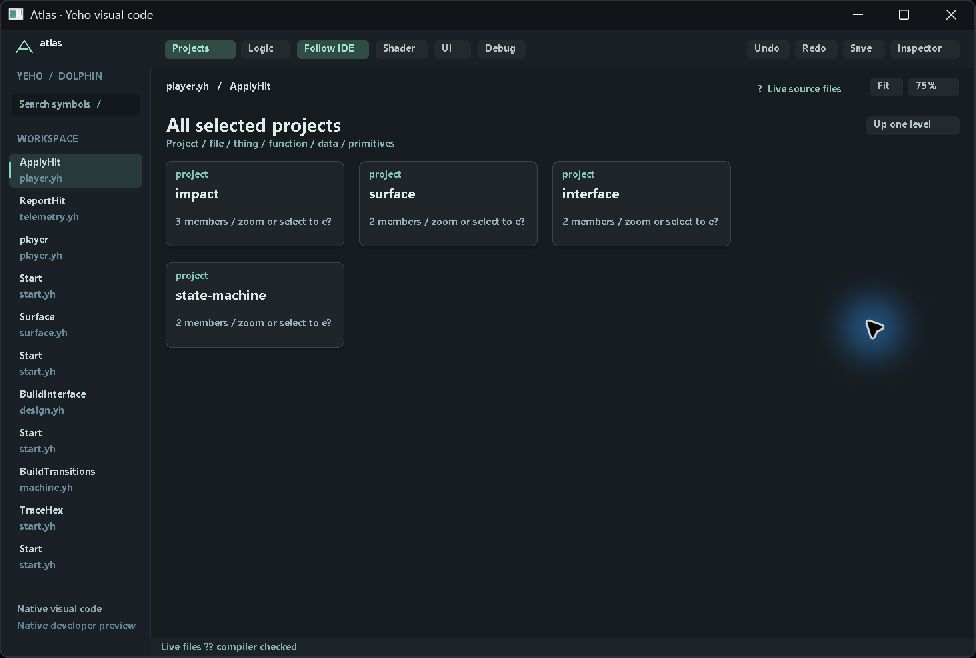
- Run
python products/atlas/tools/atlas.py runfrom the current Yeho checkout. - Select a project, then a file, thing/class, or function. Follow call cards to another function.
- Use the wheel to zoom, drag empty space to pan, and use Up one level or Backspace to rise again.
- Select a parameter or field to inspect its datatype. Scalar byte sizes are labeled for the Windows x64 Kyber contract; dynamic allocations are not guessed.
- Choose Primitive operations when you need exact operations and source spans. Pair with the Yeho VS Code extension for shared buffers.
Direct unambiguous calls and named type use are shown. External, indirect, or ambiguous calls remain visible boundaries. Current limits are 2,048 scopes, 1,024 operations per scope, and bounded transport. This is not yet a qualification for arbitrarily large repositories.
02 / VISUAL UI
Arrange a screen. Change its real source.
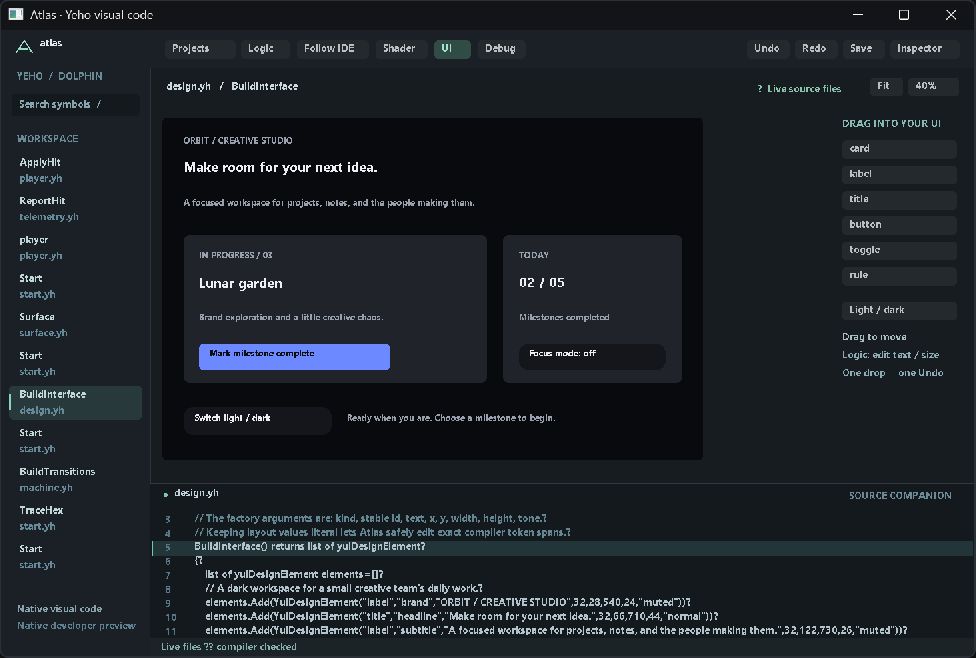
- Run
python products/atlas/tools/atlas.py run --view ui. - Drag a card, label, title, button, toggle, or rule from the palette onto the canvas.
- Drag an existing element to change its coordinates. Release commits one compiler-checked edit; Escape cancels.
- Use Undo to restore the previous source. An intervening source change cancels a stale gesture.
- Use Logic, then Primitive operations, to edit text, dimensions, and theme tone. Run the standalone example to exercise its real actions.
This first editing vocabulary admits straight-line literal YuiDesignElement list builders. Dynamic expressions, nested .yui flow layouts, arbitrary widgets, and full responsive constraints remain code-authored.
03 / VISUAL SHADERS
Explore a material as connected math.
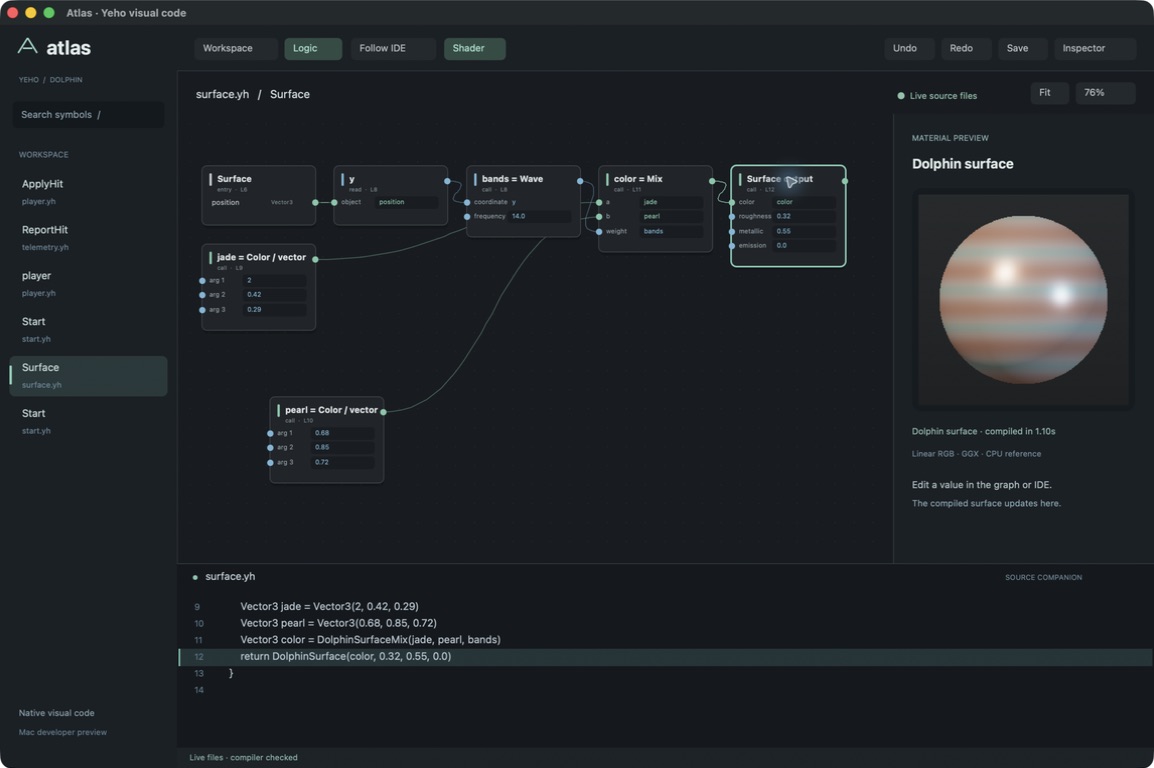
Open Shader to inspect the Dolphin surface function. Change a color, roughness, metallic value, or wave input. Atlas compiles the captured source and refreshes its material sphere. Invalid source keeps the last image visibly stale.
The surface preview uses the CPU reference material contract. Yeho’s separate GPU compute lessons run real image kernels; arbitrary graph-to-GPU material export and Studio scene binding are not implied.
Continue to GPU shader lessons →04 / OBSERVED STATE
See the state your application actually reports.
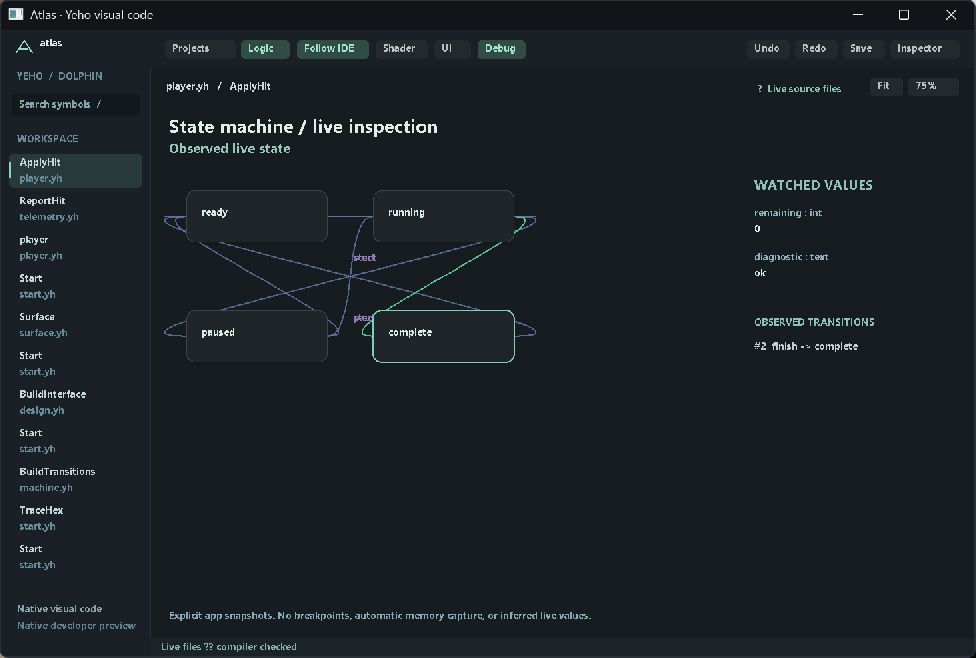
The bundled state-machine example uses the same Yeho transition list for execution and its diagram. Space starts, pauses, and resumes; R resets. Atlas highlights the reported state and shows watched values and observed transitions.
- Build
products/atlas/examples/state-machinewith the explicit CPU reference backend. - Set
ATLAS_TRACE_PATHto an owned local snapshot path before running the example. - Launch Atlas with
--view debug --tracefollowed by that same path. - Press Space in the example and watch the state and remaining time change. Pause it, reset it, and close it to see stale-data handling.
This is explicit live-state inspection, not a breakpoint debugger or automatic process-memory capture. The app chooses which values to expose. Missing transition observations are labeled, and old snapshots are marked stale.
One source. Several useful ways to understand it.
Start in the view that answers your question, then move closer only when you need more detail.